Recipients and groups
Newsletters send to groups, not to individual recipients. Add people, put them in groups, then choose groups on each newsletter.
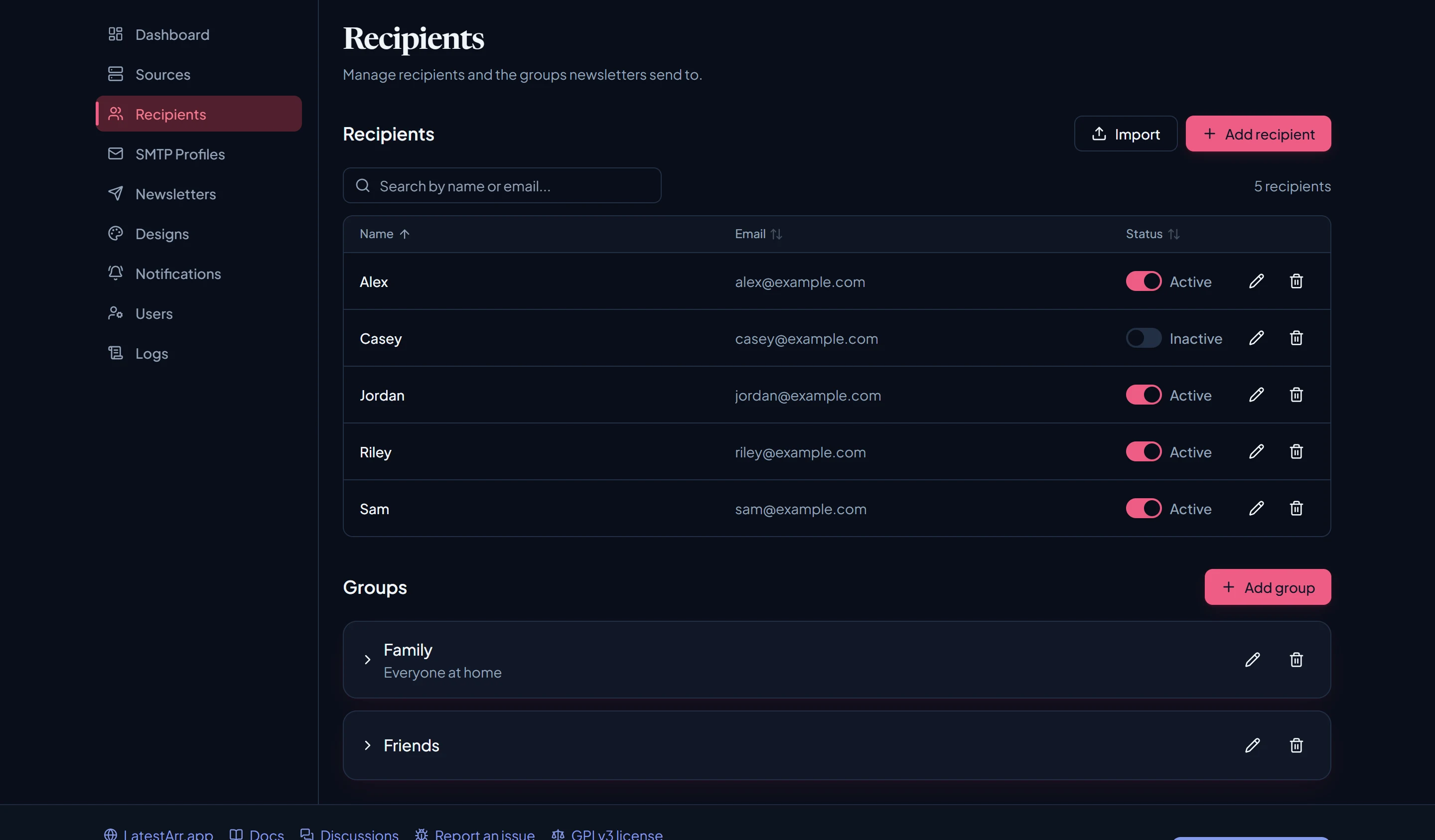
Adding recipients
There are three ways in:
- One at a time: an email address and an optional display name.
- Paste or CSV: see below.
- From a source: import your media server’s users. See Importing users.
Paste or CSV format
Paste a list or upload a .csv or .txt file. Each line can be any of these:
alex@example.com
alex@example.com, Alex
Alex, alex@example.com
Alex <alex@example.com>
A flat list separated by commas or semicolons works too. An optional header row (email,name
or name,email) is skipped.
Before importing, LatestArr shows what it understood. Lines it can’t read are listed for you to fix, and rows are skipped with a reason if the email is invalid, appears twice, or already exists. Up to 1,000 rows per import.
Groups
A group has a name and an optional description. Manage membership from the group itself or from a recipient’s edit dialog, which can also create a new group.
Someone in two groups that the same newsletter targets gets one copy, not two.
Active and inactive
Each recipient has an active switch. Inactive recipients are skipped on every send but keep their group memberships, so you can switch them back on later.
Deactivating someone is currently the only way to stop their emails. There’s no unsubscribe link yet. See Unsubscribe.