Backups and restore New in 0.12
LatestArr backs up its database every day at 03:00 and keeps the last seven, with no downtime. It also backs up before every upgrade. Change the schedule and what’s kept on the Backups page, which only admins can open.
The Backups page
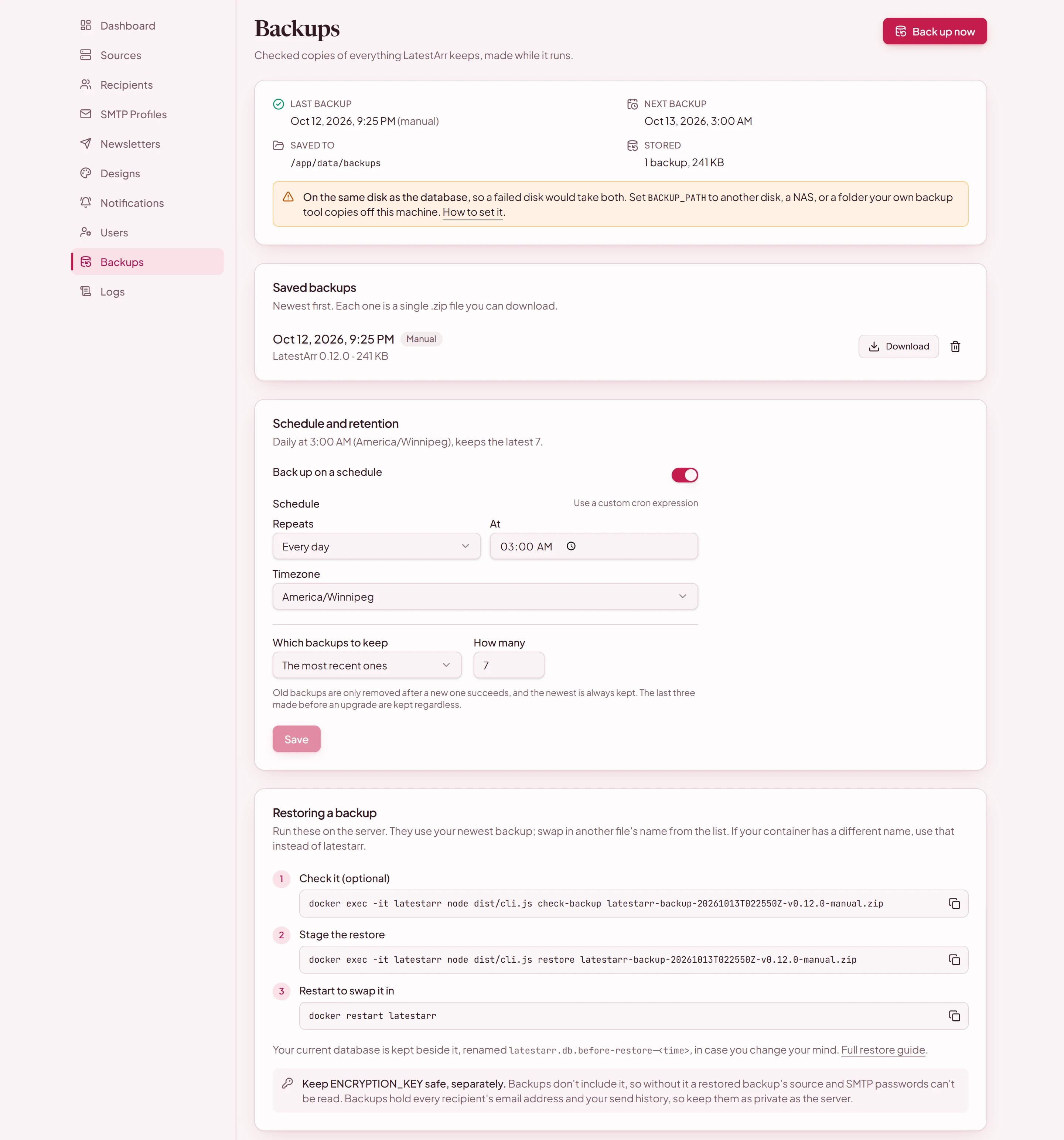
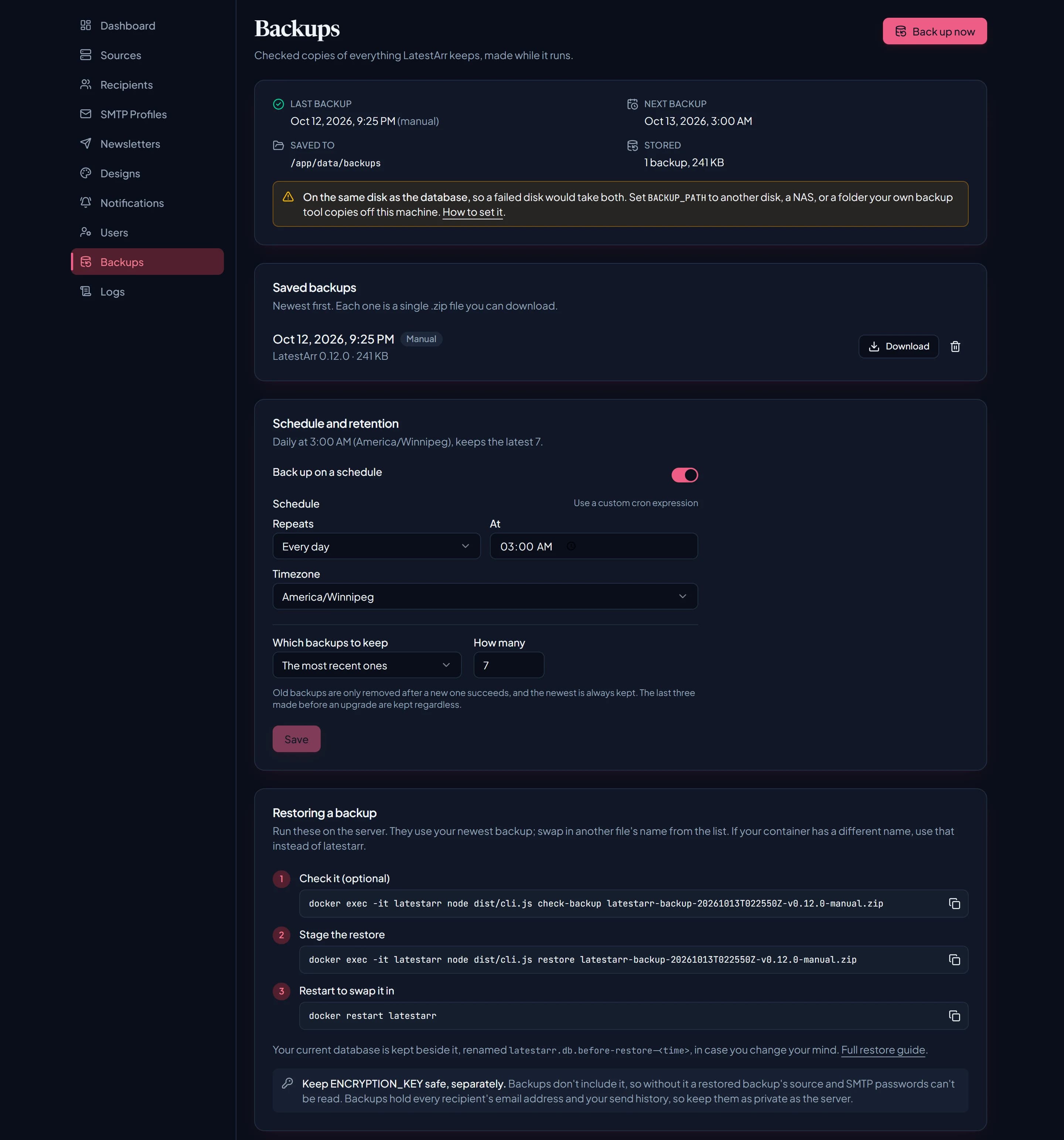
From top to bottom:
- Status: the last backup, the next one, where they’re saved, and how many there are with their total size. A note warns when they’re on the same disk as the database.
- Saved backups: newest first, with Download and Delete on each. Back up now makes one straight away.
- Schedule and retention: its header sums up what’s set, like “Daily at 3:00 AM (UTC), keeps the latest 7.”
- Restoring a backup: the three commands below, with copy buttons, already filled in with your newest backup’s name.
How backups work
- Each backup is one
.zipfile, named likelatestarr-backup-20260929T030000Z-v0.12.0-scheduled.zip. It holds the database and amanifest.json: the version, the time, item counts, and a fingerprint of your key, never the key itself. - They’re made while LatestArr runs, using SQLite’s online backup, and checked with SQLite’s integrity check before they’re kept.
- A backup that fails is reported on the Backups and Logs pages, and with a failure alert (A backup fails) if you’ve set one up.
- Retention keeps either the most recent N, or the newest from each of the last few days, weeks, and months. Old backups are only removed after a new one succeeds, and the newest one is always kept.
- Before an upgrade, when a new version starts on your database for the first time, it backs up first, marked Before upgrade. The last three of those are kept regardless of retention, so an upgrade can always be undone.
Where they’re saved
Backups go to /app/data/backups by default. That’s on the same volume as the database, so a
failed disk would take both. Set BACKUP_PATH to a
folder on another disk, a NAS mount, or somewhere your host’s own backup tool already copies
offsite:
services:
  latestarr:
    environment:
      BACKUP_PATH: /backups
    volumes:
      - latestarr-data:/app/data
- /mnt/nas/latestarr-backups:/backupsKeep ENCRYPTION_KEY safe, separately. Backups don’t include it, on purpose. Without it, a
restored backup’s source and SMTP passwords can’t be read. Everything else still works, and you
can enter those again.
Backups are sensitive. They hold every recipient’s email address and your send history. Only admins can download them, and each download is logged.
Restoring a backup
The recovery command checks a backup and swaps it in the next time LatestArr starts. Your current
database is kept beside it, renamed latestarr.db.before-restore-<time>, in case you change your
mind.
Check it (optional)
docker exec -it latestarr node dist/cli.js check-backup <file>This shows when it was made and by which version, what it contains, and whether it was made with
this server’s ENCRYPTION_KEY.
Restore it
docker exec -it latestarr node dist/cli.js restore <file><file> is a backup’s name from the Backups page, or a path inside the container.
Restart
docker restart latestarrIf your container has a different name, use that in place of latestarr.
Special cases
| Situation | What to do |
|---|---|
| A backup you downloaded | Copy it into the backup folder first: docker cp latestarr-backup-….zip latestarr:/app/data/backups/ |
| It was made with a different key | The restore stops and explains. Set ENCRYPTION_KEY to the key of the install the backup came from, restart, and run it again. Or add --ignore-key-mismatch and enter the sources’ and SMTP profiles’ credentials again afterwards. |
| It was made by a newer version | A backup from a newer LatestArr won’t restore on an older one. Upgrade first. |
| You changed your mind before restarting | docker exec -it latestarr node dist/cli.js restore --cancel |
| The container won’t start at all | Stop it, unzip the backup, and put its latestarr.db in place of the one in the data volume, removing latestarr.db-wal and latestarr.db-shm beside it. Then start it. |
LatestArr also warns at startup when its key can’t read the saved credentials.